 Pop Studio
 in action: a two-photo collage in 20 seconds
Recorded on a Pixel 10 Pro XL: one two-photo collage, side-by-side, stacked and unequal layouts, the Margin, Gap and Corner sliders, and cream versus black backgrounds, with a timestamped breakdown and steps to make your own.
Most collage apps look simple in screenshots and turn fiddly the moment you try to make something. The honest way to judge one is to watch it being used. So here is Pop Studio on a real phone: a two-photo collage, three layouts, a spacing tweak and two background colours, recorded on a Pixel 10 Pro XL in 20 seconds.
Under the video you will find a timestamped list of every tap, what each choice changes, and the same steps written out so you can make your own version.
Watch the collage come together
What you see in the video
- A two-photo collage, a green mountain valley and Yosemite, open in the editor in a side-by-side layout. Along the bottom are the tabs Layout, Ratio, Border, Background, Sticker, Text and Filter.
- Tap the stacked layout: one photo on top, one below.
- Tap a layout with unequal columns: one wide column and one narrow.
- Tap the mirrored unequal layout, with the wide column on the other side.
- Back to the even side-by-side layout.
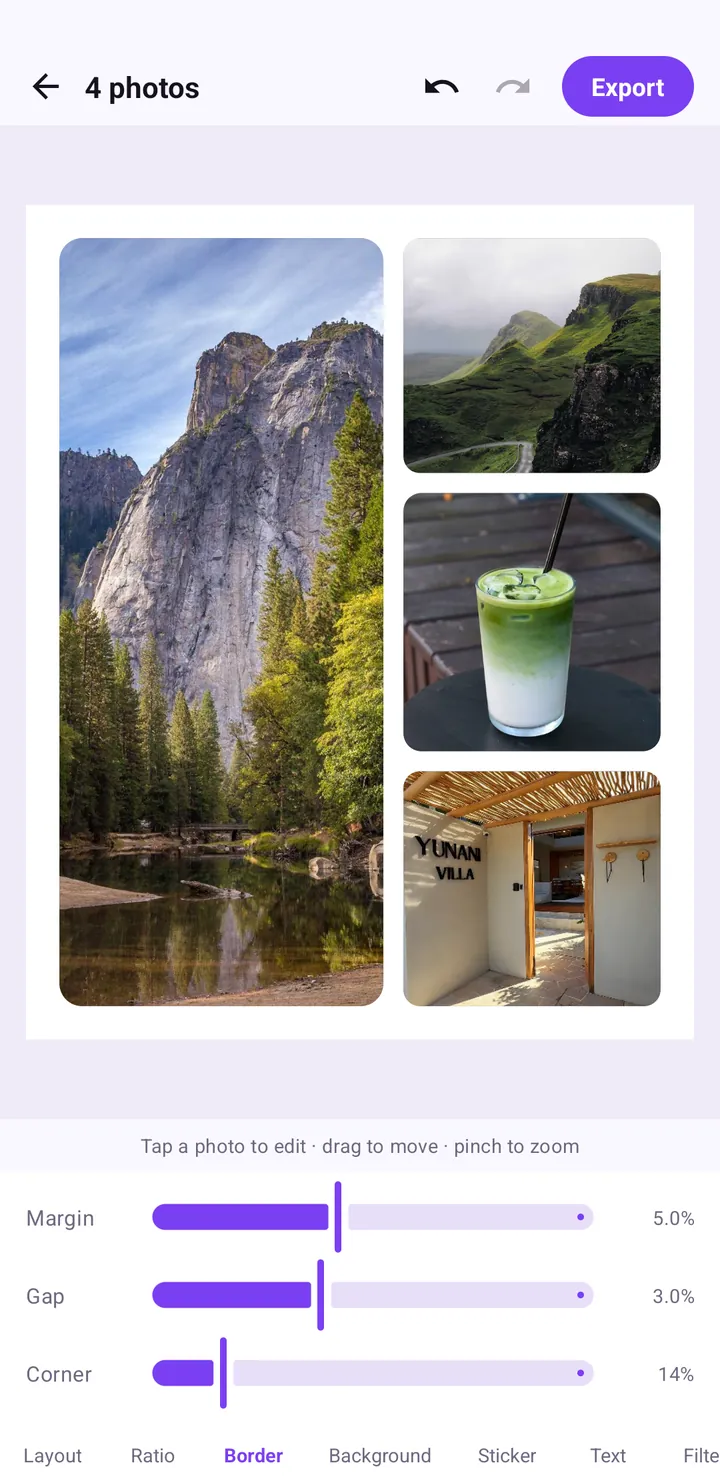
- Open Border: three sliders, Margin at 3.0%, Gap at 2.0% and Corner at 4.0%.
- Drag Gap up to 5.5% to give the two photos more breathing room.
- Open Background and its row of colour swatches.
- Pick cream: a warm, paper-like frame.
- Pick black: the same collage turns dramatic and gallery-like.
- A glance at the Sticker tab, with categories such as Recent, Faces, Love, Party and Food.
What each choice changes
Layout decides the story
Side by side treats two photos as equals, which suits a comparison or a pair from the same moment. Stacked works when both photos are wide, like two landscapes. Unequal columns give one photo the lead and let the other support it: a big view next to a detail. Tapping through the layouts takes a couple of seconds each, so try them all before deciding. Our collage ideas post has more combinations to borrow.
Border is about spacing, not lines
Pop Studio's Border tab has three sliders. Margin is the space around the outside edge, Gap is the space between photos and Corner rounds the corners of each photo. Small values look tidy. In the video only Gap changes, from 2.0% to 5.5%, and that alone makes the collage feel less cramped. The ratio, border and background guide lists values that work for different styles.
Background sets the mood
The background fills the margin and the gaps, so it frames every photo at once. Cream is soft and warm, close to a printed photo album. Black makes colours pop and suits evening or dramatic shots. The same swatch row also has white, beige, dark grey and a soft pink, so you can match the background to the photos rather than fight them.
Make your own two-photo collage
- Open Pop Studio and tap Collage on the home screen.
- In the Android photo picker, tap two photos, then tap Done. The app only receives the photos you pick.
- On Layout, tap side by side, stacked and the unequal layouts, and keep the one that suits your photos.
- Drag inside a cell to reposition a photo or pinch to zoom, so the important part sits in the frame.
- On Ratio, choose a shape for where you will post, such as 4:5 for a feed or 9:16 for a Story.
- On Border, raise Gap a little. Add a touch of Corner for a softer look.
- On Background, try a light and a dark colour and keep the one that flatters both photos.
- Tap Export, pick JPEG or PNG, and share from the Saved screen.
Tip: choose the ratio before you add stickers or text. Changing the shape later can shift how everything fits.
About the recording
This is a plain screen recording of the Pop Studio Android app on a Pixel 10 Pro XL, trimmed to 20 seconds. The editor hint you can see under the collage, "Tap a photo to edit · drag to move · pinch to zoom", is part of the app. Everything happens on the phone: Pop Studio builds collages on your device and does not upload your photos.
First time here? The beginner guide walks through the home screen, the photo picker and every editor tab.
Frequently asked questions
How many photos can a Pop Studio collage hold?
From 2 up to 9 photos. The video uses two to keep it simple.
What do Margin, Gap and Corner do?
Margin is the space around the outer edge, Gap is the space between photos, and Corner rounds the corners of each photo.
Can I move a photo inside its cell?
Yes. Drag inside a cell to move the photo and pinch to zoom, as the hint under the collage says.
Are my photos uploaded?
No. Pop Studio builds collages on your phone and does not upload your photos.
Keep reading
Collage border spacing, ratio and background colour, explained
How the Ratio, Border and Background tabs work: which ratio to choose for feed or Stories, the Margin, Gap and Corner settings that look clean, and how to pick a background.
Read the guide →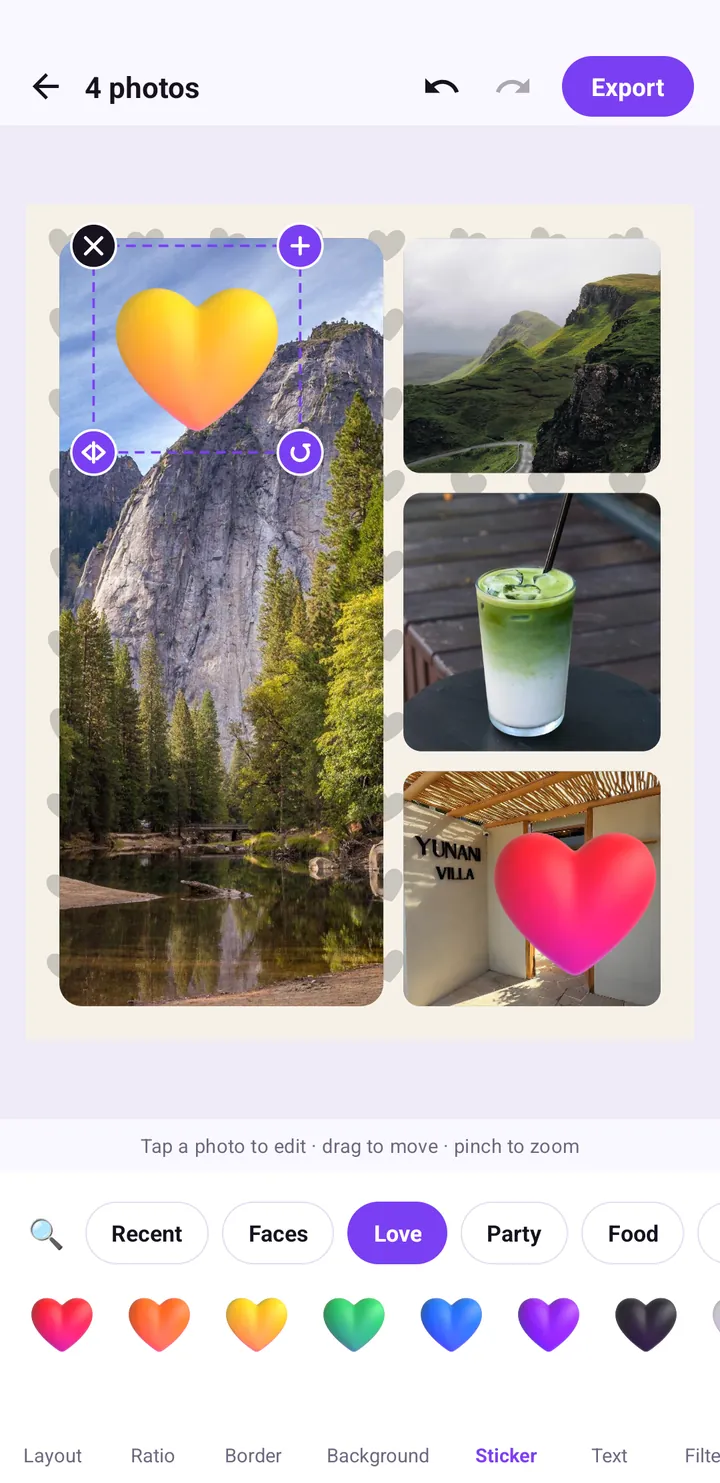
12 collage ideas for birthdays, couples, trips, food and friends
Twelve collage ideas for birthdays, couples, trips, food and friends, each with the exact layouts, ratios, stickers and poster templates to use in Pop Studio.
Read the guide →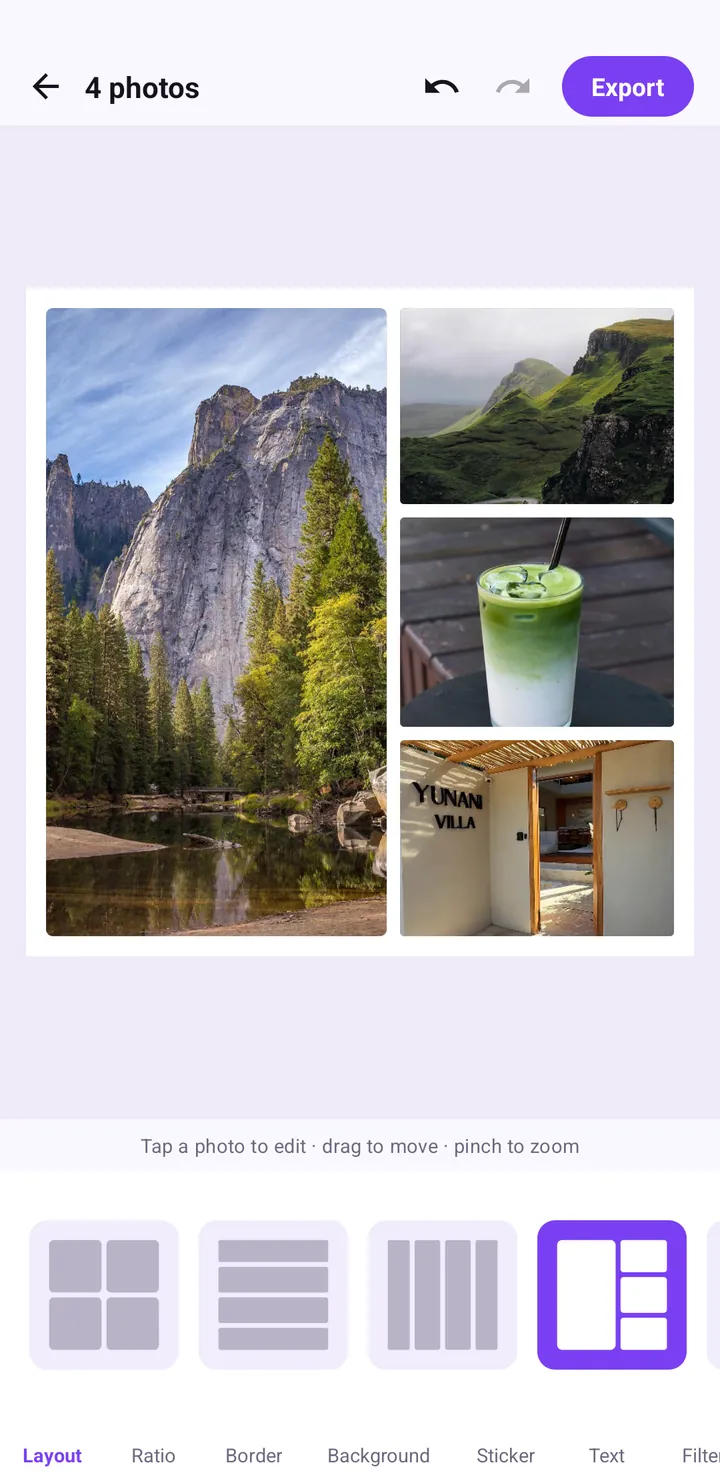
How to Make a Photo Collage on Android: Layouts and Spacing
A step-by-step guide to building a balanced photo collage in Pop Studio: choosing layouts, framing photos in each cell, picking a ratio and getting the spacing right.
Read the guide →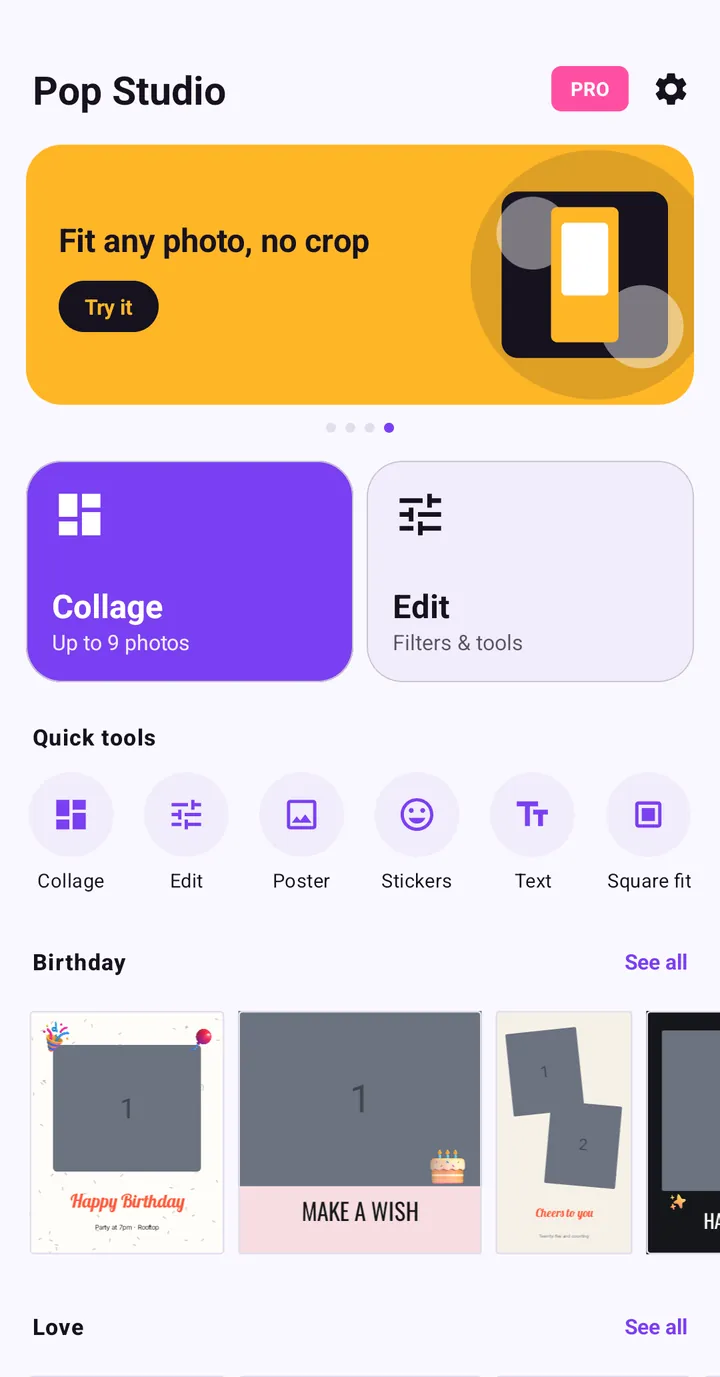
Pop Studio App Tutorial: Make Your First Photo Collage
New to Pop Studio? This beginner guide walks you from the home screen to a finished photo collage saved in your gallery, one tap at a time.
Read the guide →