 Pop Studio
12 collage ideas for birthdays, couples, trips, food and friends
Twelve collage ideas for birthdays, couples, trips, food and friends, each with the exact layouts, ratios, stickers and poster templates to use in Pop Studio.
You have the photos. A birthday dinner, a weekend away, a stack of food pictures from the café you keep going back to. What you do not have is an idea for turning them into something worth posting. Staring at a blank collage grid is surprisingly hard, and most "collage ideas" lists online show beautiful results without ever telling you how to make them.
This post is different. Here are 12 collage ideas for birthdays, couples, trips, food and friends, and every one comes with the exact steps to make it in Pop Studio, using the real tab names, sticker categories, ratios and poster templates that are in the app. Some ideas use the collage editor, some use ready-made poster templates, and a few mix both.
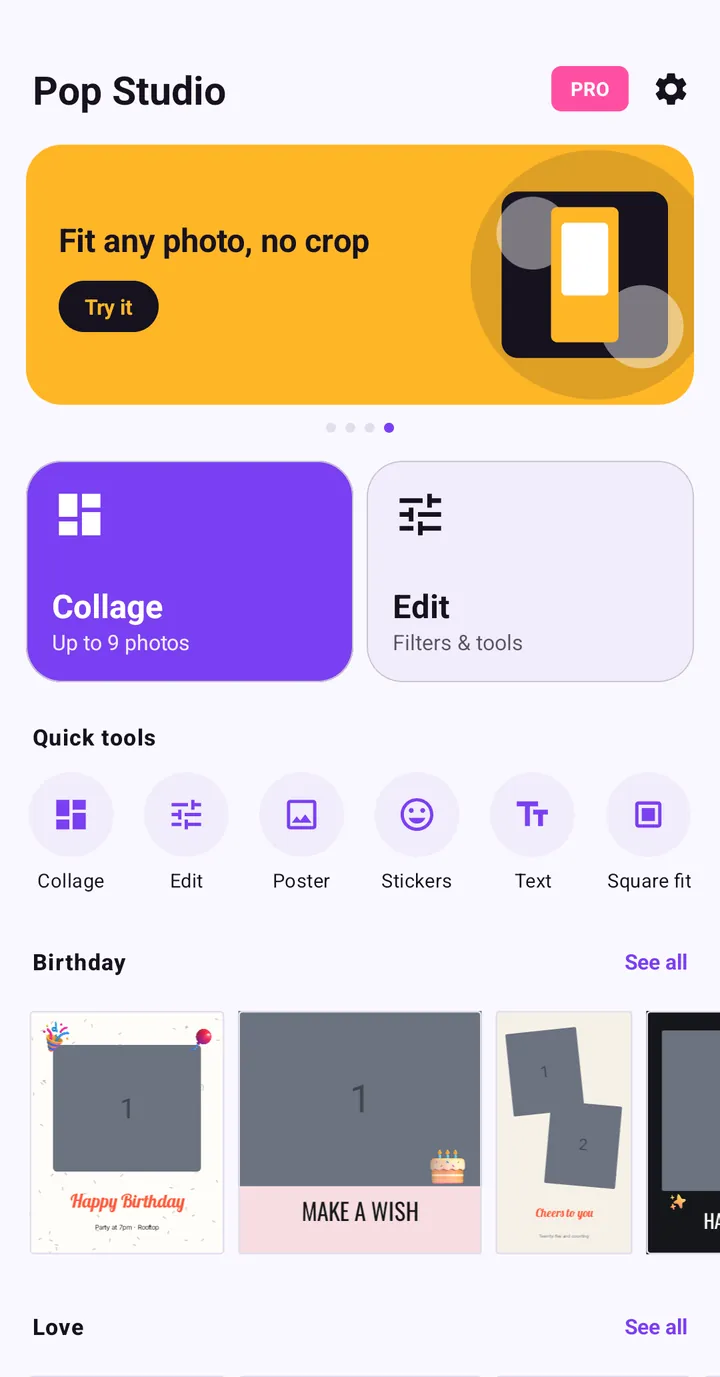
Before you start, it helps to know the two building blocks. A Collage takes up to 9 photos in a grid and gives you the tabs Layout, Ratio, Border, Background, Sticker, Text and Filter. A Poster is a designed template, sorted into categories like Birthday, Love, Friends, Story, Travel and Food, that you fill with your own photos.
The basic recipe behind every idea
All 12 ideas follow the same simple flow, so learn it once and the rest is just choosing ingredients.
- On the home screen, tap Collage (or Poster in Quick tools for a template).
- Pick your photos in the Android photo picker and tap Done.
- Choose a grid in Layout and a shape in Ratio.
- Set spacing in Border and a backdrop in Background.
- Decorate with Sticker and Text.
- Finish with a look from Filter.
- Tap Export and pick JPEG · smaller file or PNG · lossless.
If any of those steps is new to you, the beginner guide walks through each one with screenshots.
Birthday collage ideas
1. The ready-made birthday card
The fastest birthday collage is the one somebody already designed. The home screen has a Birthday row with templates such as HAPPY BIRTHDAY, MAKE A WISH and a "Cheers to you" design with two tilted photos.
- On the home screen, scroll to Birthday and tap See all.
- Tap a design; each card shows how many photos it needs.
- Pick that many photos of the birthday person.
- Edit the text layer to add their name or age.
- Export and send it before the cake comes out.
2. The party grid
For a collage made from the party itself, go playful.
- Start a Collage with four photos and pick the 2×2 grid in Layout.
- In Ratio, choose 1:1 for a square post.
- In Border, raise Gap and Corner for a bubbly look.
- Open Sticker, tap the Party category and drop a couple of stickers near the corners.
- Add "Happy birthday" in Text and turn on Label in Style so it reads on any photo.
Couple photo collage ideas
3. The hearts collage
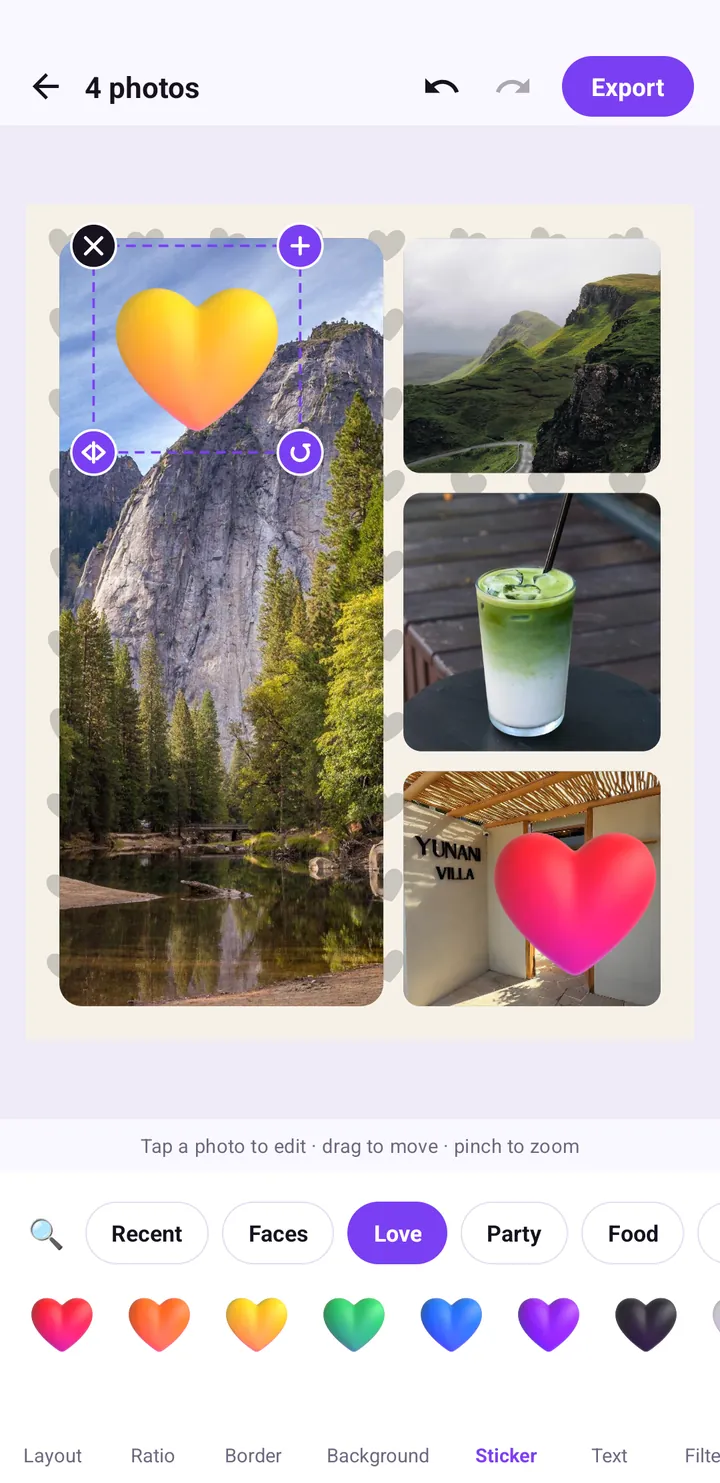
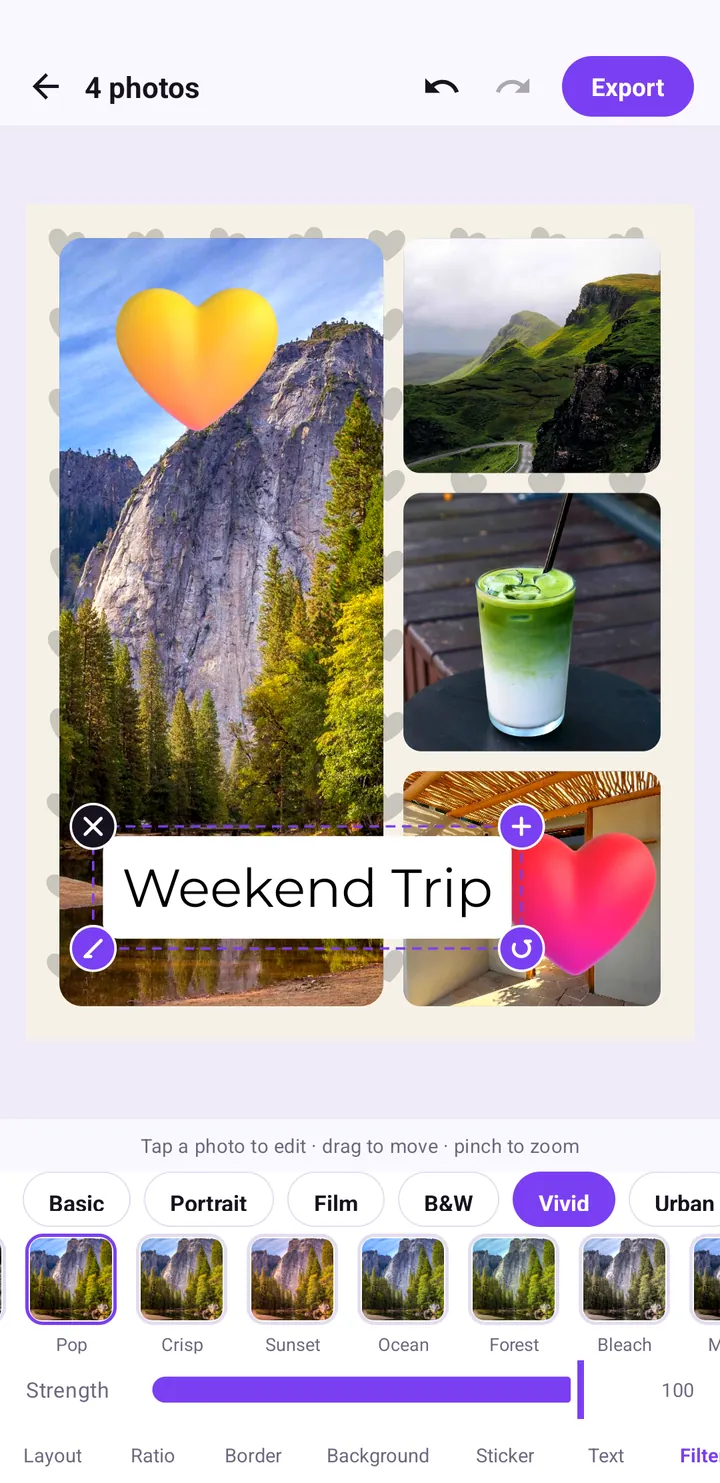
This is exactly what the screenshots in this post show, and it is a reliable couple photo collage recipe.
- Choose four photos, pick a layout with one large photo and three smaller ones.
- In Background, tap the hearts pattern.
- In Sticker, open Love and place one or two hearts. The Love category has hearts in several colours.
- Drag a sticker to move it and pinch to resize; use the corner handles to rotate it.
4. The anniversary poster
Prefer something designed? Open Poster and the Love category. Pick a template with two photo slots, choose one old photo and one recent one, and you have a "then and now" without designing anything yourself. The poster templates guide explains layers and the poster editor in detail.
5. The side-by-side then and now
For a clean collage version, start a collage with two photos, pick a side-by-side layout, set Ratio to 4:5, and add a small text label with each year. Keep Corner low so it feels like two prints side by side.
Trip and travel collage ideas
6. The nine-photo trip recap
A collage takes up to nine photos, which is perfect for a dense "best of the trip" grid.
- Pick nine photos: mix wide landscapes, close details and one or two of people.
- Choose a grid layout in Layout.
- In Border, set Margin and Gap very low and Corner to zero for a seamless mosaic.
- In Filter, pick one look so all nine photos match, then lower Strength if faces look off.
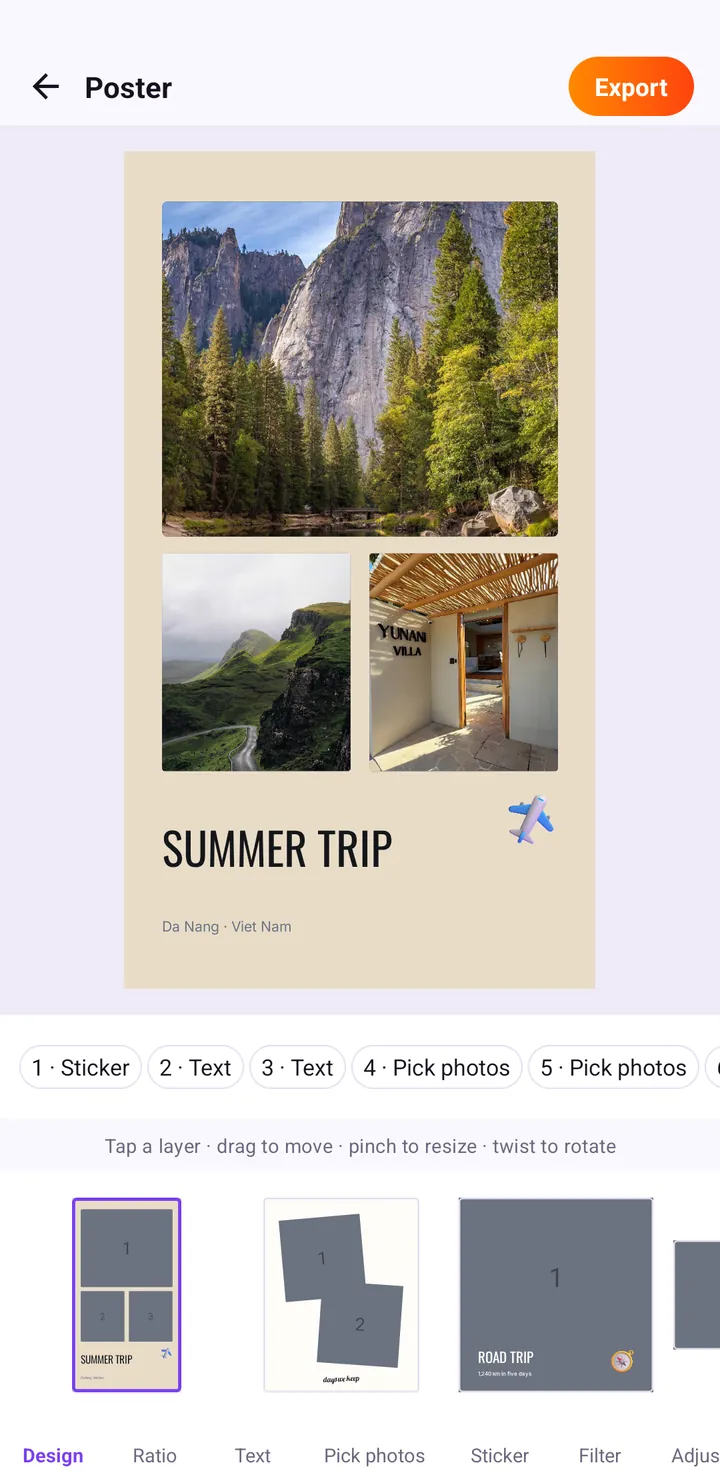
7. The SUMMER TRIP poster
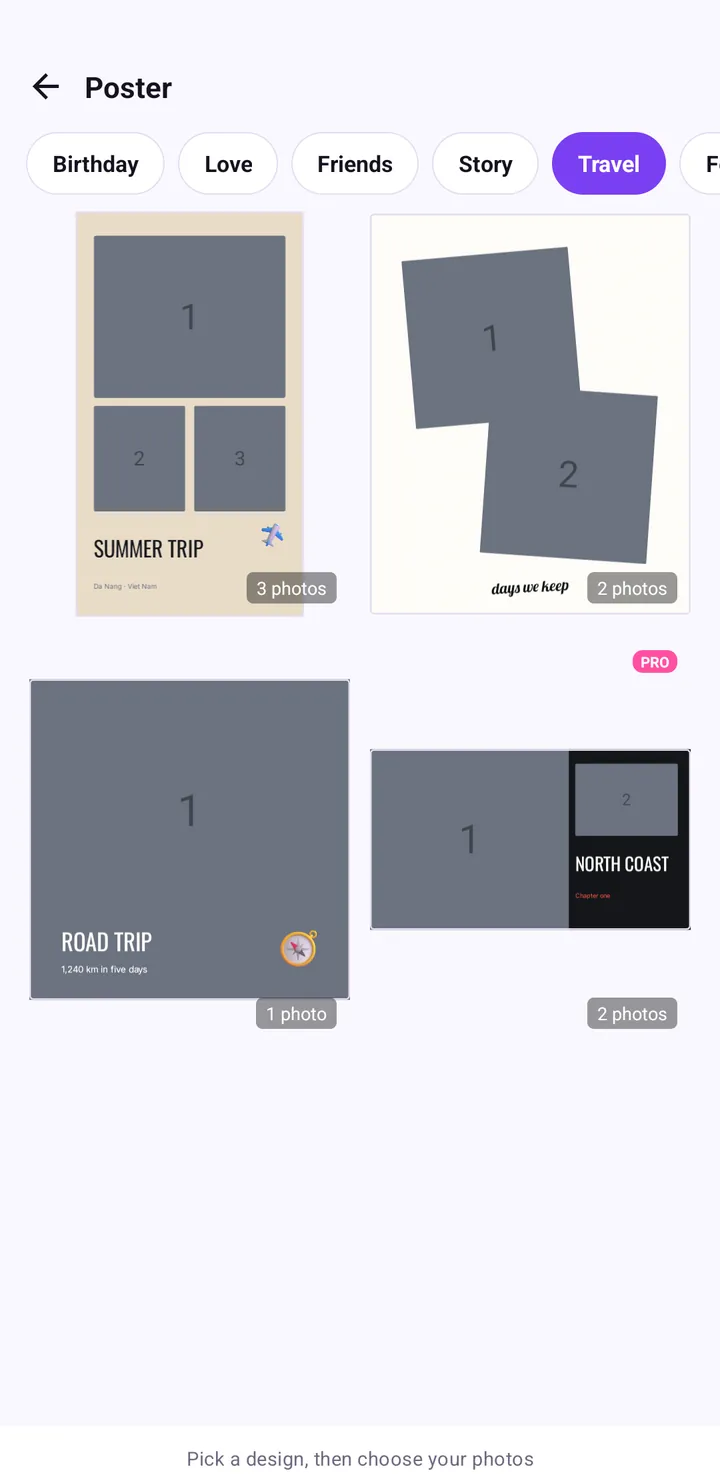
In Poster, the Travel category includes SUMMER TRIP (3 photos), ROAD TRIP (1 photo), a polaroid-style design (2 photos) and NORTH COAST (marked PRO). Pick SUMMER TRIP, choose three photos, then change the place line under the title to your own destination.
8. The weekend trip card
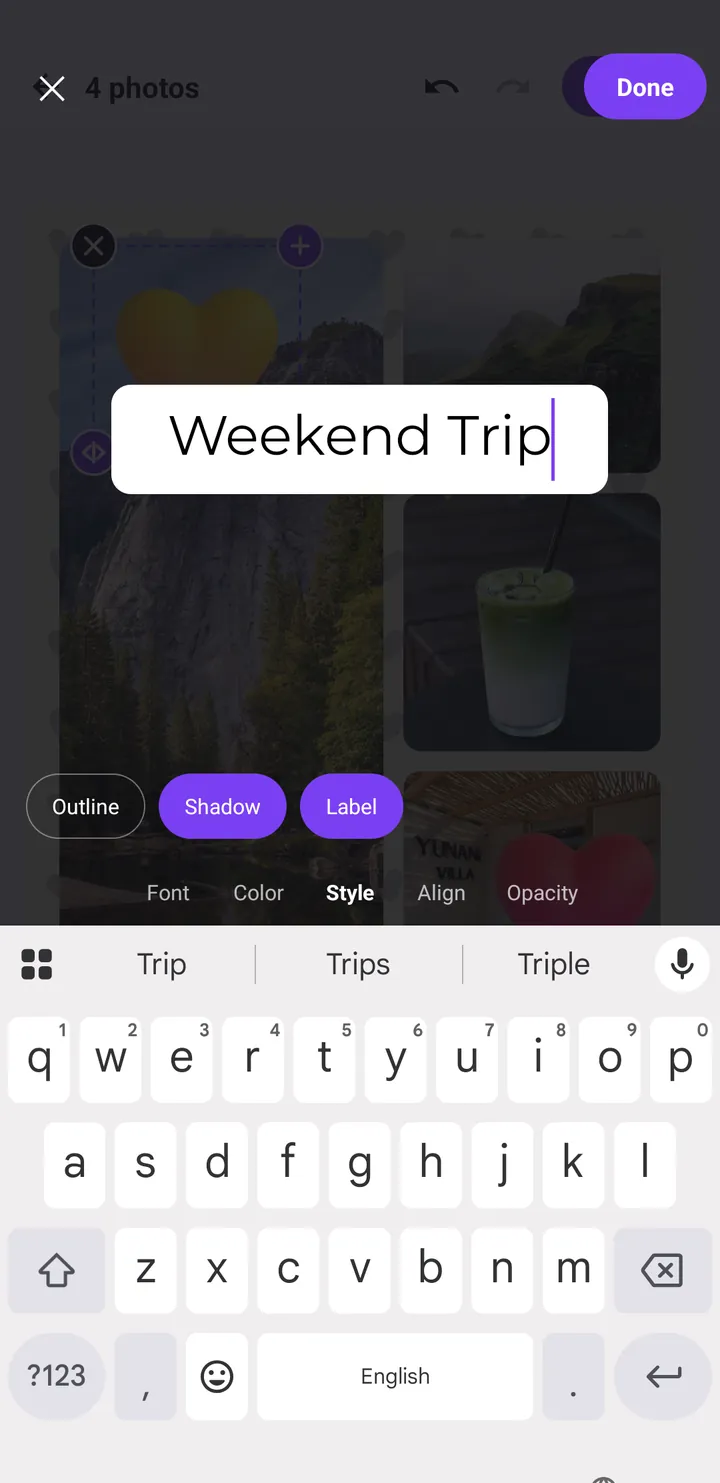
Our sample collage is this idea: a big landscape on the left, three smaller moments on the right, a hearts background, two heart stickers and a "Weekend Trip" label. To make your own, follow the hearts collage recipe above, then add text with Label turned on in the Style tab of the text editor.
Food collage ideas
9. The café-hopping strip
Pick four drinks or desserts from different cafés. In Layout, choose the four horizontal stripes or four vertical columns. Columns suit tall glasses; stripes suit plates and flat lays. Add a short caption like the neighbourhood name, then tap Filter, open Vivid and try Pop or Crisp, which make food colours look fresh.
10. The weekly food diary
- Choose up to nine meals from the week.
- Set Ratio to 1:1 and pick a grid layout.
- Open Sticker and the Food category for a few accents.
- Use a plain light Background so the food stays the star.
The filters guide has more on which looks suit food.
Friends collage ideas
11. The friends night out
Open Poster and the Friends category for designed layouts, or build a collage and use the Faces and Party sticker categories. Funny face stickers are also a polite way to cover someone who asked not to be posted.
12. The Story-sized shout-out
For a birthday or "miss you" message to share as a Story:
- Start a Collage with two or three photos.
- In Ratio, choose 9:16.
- Add a big caption with Text in the middle third of the canvas.
- Export and tap Instagram on the Saved screen.
Alternatively, the Story category in Poster has designs made for that tall shape. Our guide to Instagram Story collages explains where to keep text so it is not covered by app buttons.
Collage or poster: how to choose for your idea
Several ideas above can be made either way, so it helps to know when each tool is the better fit.
Choose a poster template when
- You are short on time. A poster already has a title, decorations and a balanced layout; you only add photos and edit the words.
- You have one to three strong photos. Templates such as ROAD TRIP need just one photo, and many others need two or three.
- You want a designed look with typography, like a magazine cover or a greeting card.
Choose the collage editor when
- You have many photos. A collage holds up to nine, which suits trip recaps and food diaries.
- You want control over every detail: the exact grid, the Margin, Gap and Corner values, and the background.
- You plan to post in a specific shape. The Ratio tab lets you switch between 1:1, 4:5, 9:16 and more at any time. Our guide to ratio, border and background covers each option.
Picking photos that work together
Whatever the idea, the photos you choose matter more than any sticker. Look for a mix of distances: one wide shot that sets the scene, a couple of medium shots of people, and one close detail like a drink, a ticket or a hand. Try to keep the light roughly consistent, or plan to unify it with a single filter. And if one photo is blurry or badly lit, leave it out; a strong four-photo collage beats a weak nine-photo one.
Selected the wrong photo? Tap it on the canvas. A bar appears with Replace, Flip ↔, Flip ↕, Swap and Reset, so you can switch it out without starting over.
Tips that make any collage idea look better
- Lead with one hero photo. Layouts with one large cell give the eye a starting point.
- Repeat a colour. Pick a background, sticker colour or filter that echoes something in the photos.
- Two stickers beat ten. A couple of well-placed stickers look designed; a dozen look cluttered. The stickers guide has placement tips.
- Short text wins. "Weekend Trip" reads instantly; a full sentence does not. See our text guide for typography tips.
- Check PRO badges. Some poster templates are marked PRO. Free templates and the collage editor are always available.
Common mistakes
- Mixing too many moods. A dark nightclub photo next to a bright beach shot will clash. Use B&W or one filter to unify them.
- Cropping faces. After changing ratio or layout, drag each photo so heads are not cut off.
- Text over busy areas. Turn on Label or Shadow in the text Style tab if your caption sits on a detailed photo.
- Forgetting the destination. Choose 1:1 or 4:5 for the feed and 9:16 for Stories before you decorate.
Wrap-up
Every collage idea here comes down to a few choices: a template or a grid, a ratio for where it will be posted, spacing and background, then stickers, text and one filter. Start with the idea closest to your photos, follow its steps, and change one ingredient at a time until it feels like yours. When you are done, your collage is saved to the Pop Studio album in your Photos, ready to share. If you have not installed the app yet, head to the download page.
Frequently asked questions
How many photos can I put in one collage?
A Pop Studio collage holds up to 9 photos. Poster templates show how many photos each design needs, from 1 to 3 or more.
What is a quick birthday collage idea?
Use a ready-made Birthday template from the home screen, such as HAPPY BIRTHDAY or MAKE A WISH, add photos and edit the text. It takes a couple of minutes.
How do I make a cute couple photo collage?
Pick four photos, choose a layout with one large photo, apply the hearts background, then add a few hearts from the Love sticker category.
Should I use a collage or a poster template?
Use a poster when you have one to three strong photos and want a designed look fast. Use a collage when you have many photos or want full control over layout and spacing.
Keep reading
Poster Templates: Make a Summer Trip Travel Poster Fast
Turn your trip photos into a finished travel poster with Pop Studio's poster templates. We build a SUMMER TRIP poster step by step, then personalise it.
Read the guide →Add Stickers to Photos: Every Category and How to Use Them
Everything about stickers in Pop Studio: what each category holds, how to search, how to move, scale, rotate and remove stickers, and placement tips that avoid clutter.
Read the guide →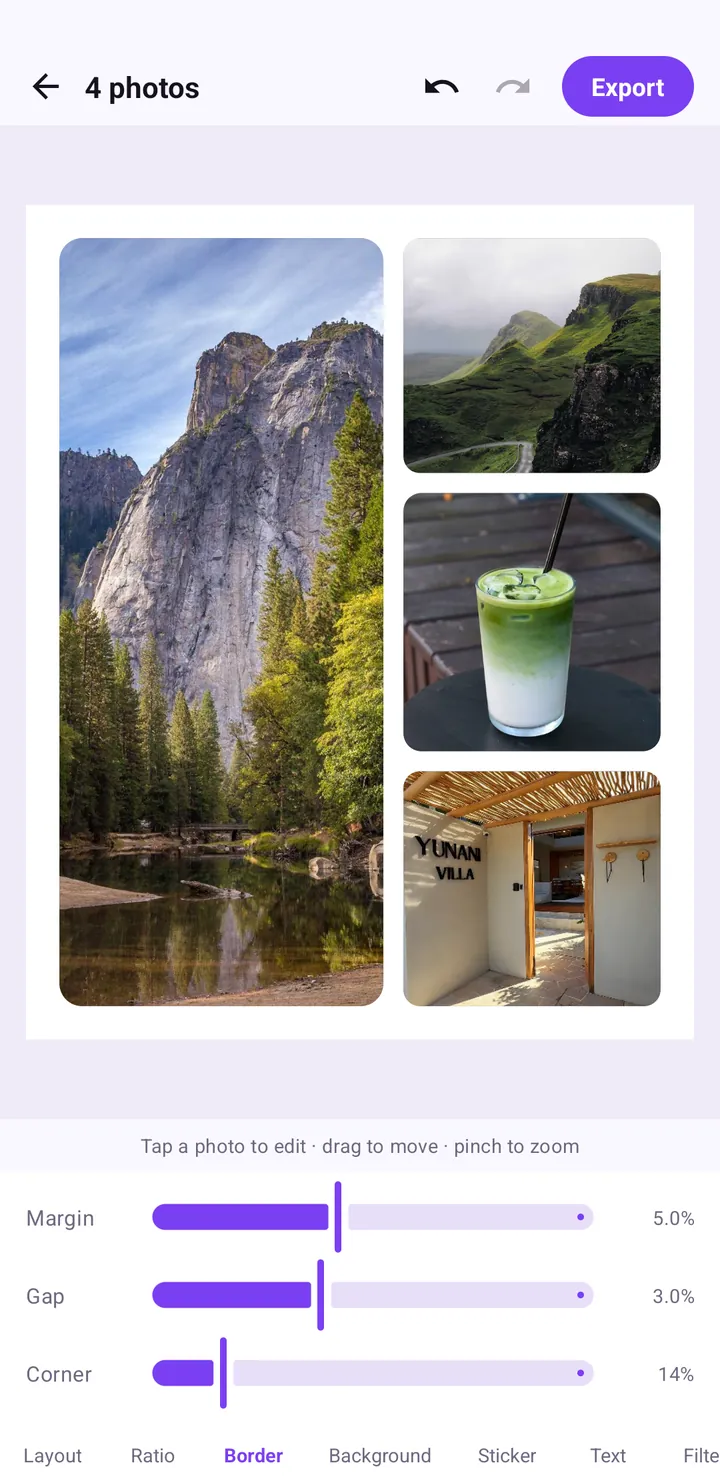
Collage border spacing, ratio and background colour, explained
How the Ratio, Border and Background tabs work: which ratio to choose for feed or Stories, the Margin, Gap and Corner settings that look clean, and how to pick a background.
Read the guide →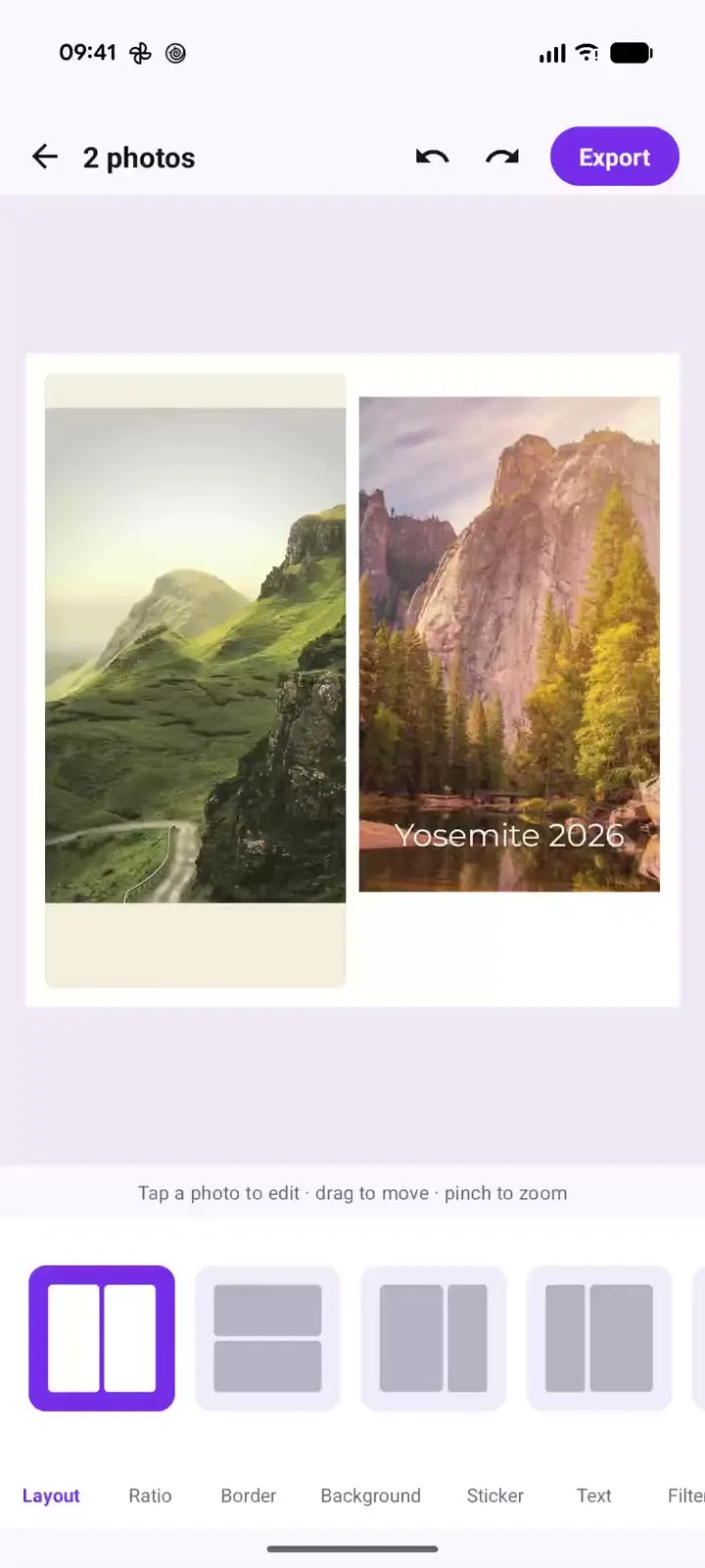
Pop Studio in action: a two-photo collage in 20 seconds
Recorded on a Pixel 10 Pro XL: one two-photo collage, side-by-side, stacked and unequal layouts, the Margin, Gap and Corner sliders, and cream versus black backgrounds, with a timestamped breakdown and steps to make your own.
Read the guide →