 Pop Studio
Save a collage to your gallery, share it, and keep photos private
Everything that happens after you tap Export: choosing JPEG or PNG, the Saved screen, sharing to Instagram, TikTok and other apps, finding your work in the Pop Studio album, and why no photo is ever uploaded.
The last step of any collage is the one people worry about most. Where does the file go? Will it be blurry? Can I send it straight to Instagram? And, more quietly, what happens to my photos once they are inside an app? Plenty of free photo editors upload your pictures to a server to process them, and many ask for access to your entire gallery the moment you open them.
This guide answers all of those questions for Pop Studio. You will learn how to save a collage to your gallery, how to choose between JPEG · smaller file and PNG · lossless, what the Saved screen does, how to share a photo collage to Instagram, TikTok or any other app, where to find your creations later, and why Pop Studio works as a private photo editor: no account, no storage permission and no upload.
It is a short process in the app, so most of this post is about understanding your choices, so you get the right file every time.
How saving works, in one minute
When your collage or poster is ready, tap the Export button at the top right of the editor. A dialog titled Export as appears with two options:
- JPEG · smaller file
- PNG · lossless
Tap one and Pop Studio renders the image on your phone and saves it. You land on the Saved screen, which confirms: "The image is in your Photos, album “Pop Studio”." From there you can share it, keep editing, or start something new.
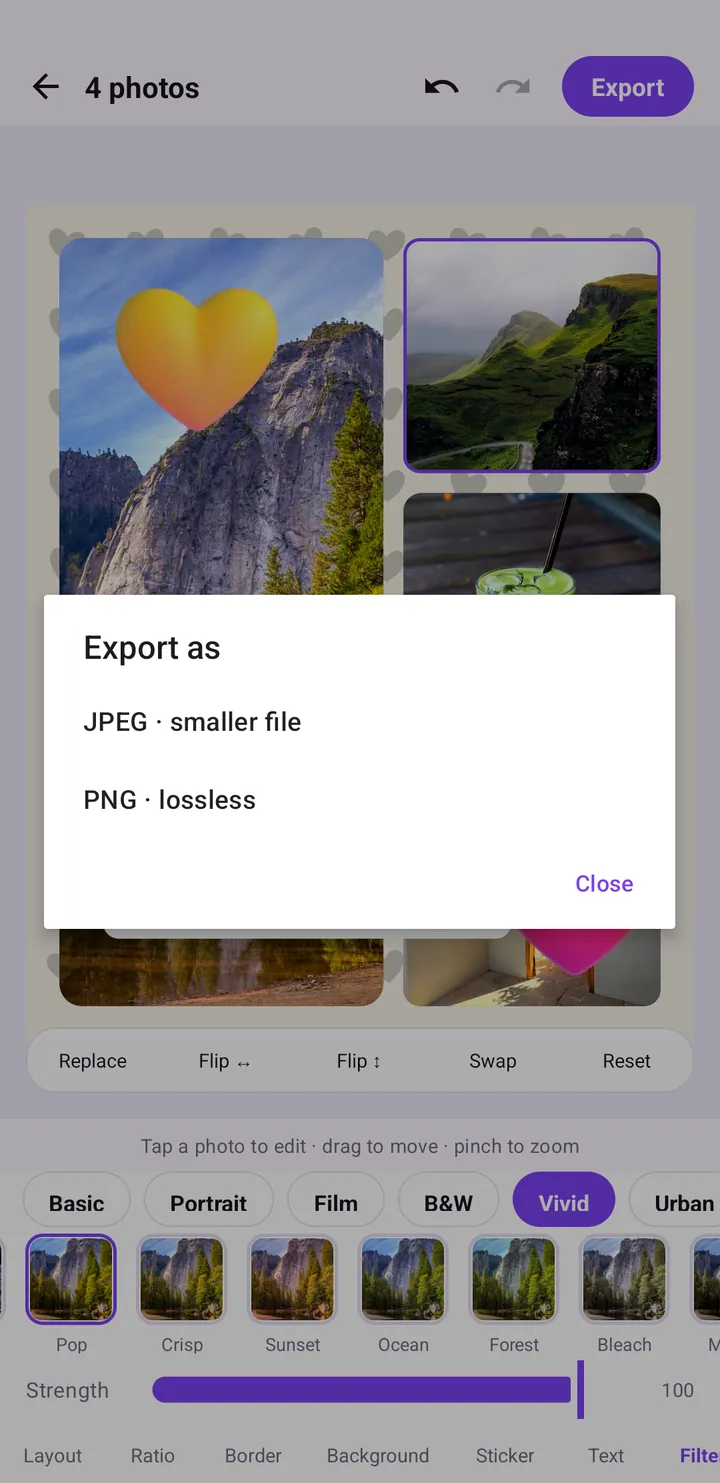
If you tapped Export by accident, tap Close in the dialog and you are back in the editor with nothing changed.
JPEG or PNG: which format to choose
Both formats save your full collage. The difference is how the file is compressed.
| JPEG · smaller file | PNG · lossless | |
|---|---|---|
| File size | Smaller | Larger |
| Quality | Slight compression, invisible in normal viewing | No compression loss at all |
| Best for | Instagram, TikTok, Facebook, messaging apps | Printing, archiving, editing again in another app |
| Upload speed | Faster on mobile data | Slower |
When JPEG is the right choice
For almost everything you share on social media, choose JPEG. Social apps re-compress whatever you upload anyway, so a PNG gives no visible benefit there and takes longer to send.
When PNG is worth it
Choose PNG if you plan to print the collage, keep a master copy, or open it in another editor for more work. Text and sticker edges stay perfectly sharp, and repeated editing does not add compression artefacts.
The Saved screen: share, edit more or start new
The Saved screen shows a preview of your finished image and three groups of actions.
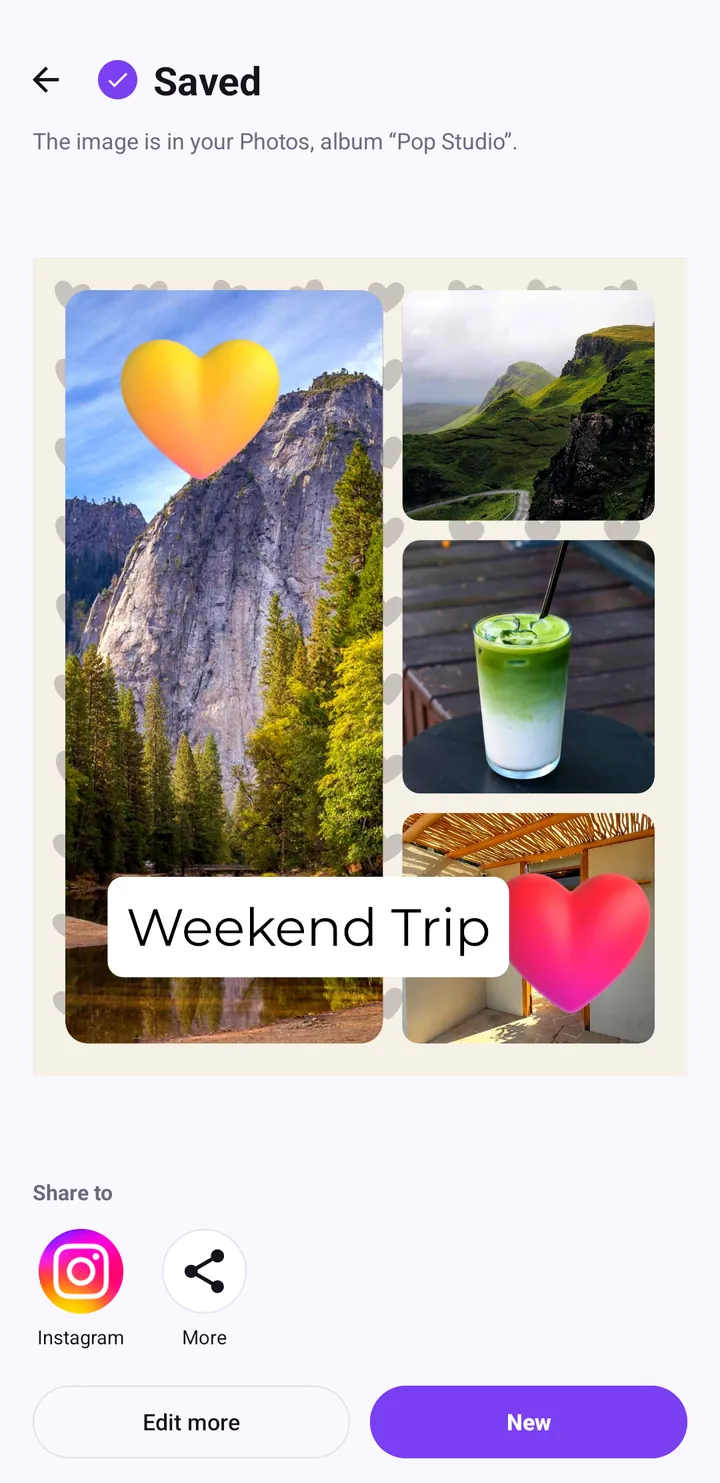
Share to
Under Share to there are two buttons: Instagram and More. Instagram hands the image straight to the Instagram app. More opens the standard Android share sheet, which lists every app on your phone that accepts images: TikTok, Facebook, Messenger, Zalo, WhatsApp, Gmail, Google Drive and so on.
Edit more
Edit more takes you back to the editor. It is handy when you spot a typo after saving, or when you want a second version in a different shape, for example a 9:16 Story version of a 4:5 feed post. Our guide to Story, TikTok and feed collages explains that workflow.
New
New starts a fresh creation. Your exported image is already safe in your Photos, so there is nothing more to save first.
Step by step: save a collage to your gallery and share it
- Finish your collage or poster in the editor.
- Tap Export at the top right.
- In Export as, tap JPEG · smaller file for sharing or PNG · lossless for printing and archiving.
- Wait a moment while the image is rendered on your phone.
- On the Saved screen, tap Instagram to post there, or More to choose another app.
- Back in Pop Studio, tap Edit more to make changes, or New to start another collage.
- To find the file later, open your phone's Photos or Gallery app and look for the Pop Studio album.
Sharing a photo collage to the right place
The share buttons get the file where it needs to go, but each destination treats images a little differently. A few habits help your collage arrive looking the way you made it.
Instagram feed and Stories
Make the collage in the right shape before you export: 4:5 or 1:1 for the feed, 9:16 for Stories. Instagram crops or pads anything else. Export as JPEG and tap Instagram on the Saved screen, then choose where to post inside Instagram.
TikTok photo posts
Use 9:16, keep captions away from the right edge and bottom, and share with More. If you are building a carousel of several collages, export them all in the same ratio so the slideshow does not jump between shapes.
Messaging apps
Chat apps such as Messenger, Zalo and WhatsApp usually compress photos further when you send them. That is fine for a quick share. If a friend needs the full-quality file, for printing for example, send it as a document or attachment instead of as a photo, or share a PNG through email or a cloud drive.
Printing
For prints, export as PNG · lossless and choose a ratio that matches your paper. 3:4, 4:3, 4:5 and 5:4 are all available in the collage Ratio tab, which makes it easy to match common print sizes without unexpected cropping at the shop.
Where to find your creations later
The Saved screen is a confirmation, not a library. Your finished images live where all your other photos live: in your phone's Photos or Gallery app, in an album named Pop Studio. That has a few nice consequences.
- Your gallery app backs them up if you use a cloud photo service on your phone, the same as any other photo.
- Uninstalling the app does not delete them. Exported images stay in your gallery.
- You can share them any time from the gallery, without opening Pop Studio.
Export before you leave the editor. The Saved screen is the moment your work becomes a file in your gallery; until then, the collage only exists in the editor.
Why Pop Studio is a private photo editor
Privacy is not a setting you have to find in Pop Studio. It is how the app is built.
No storage permission: the Android photo picker
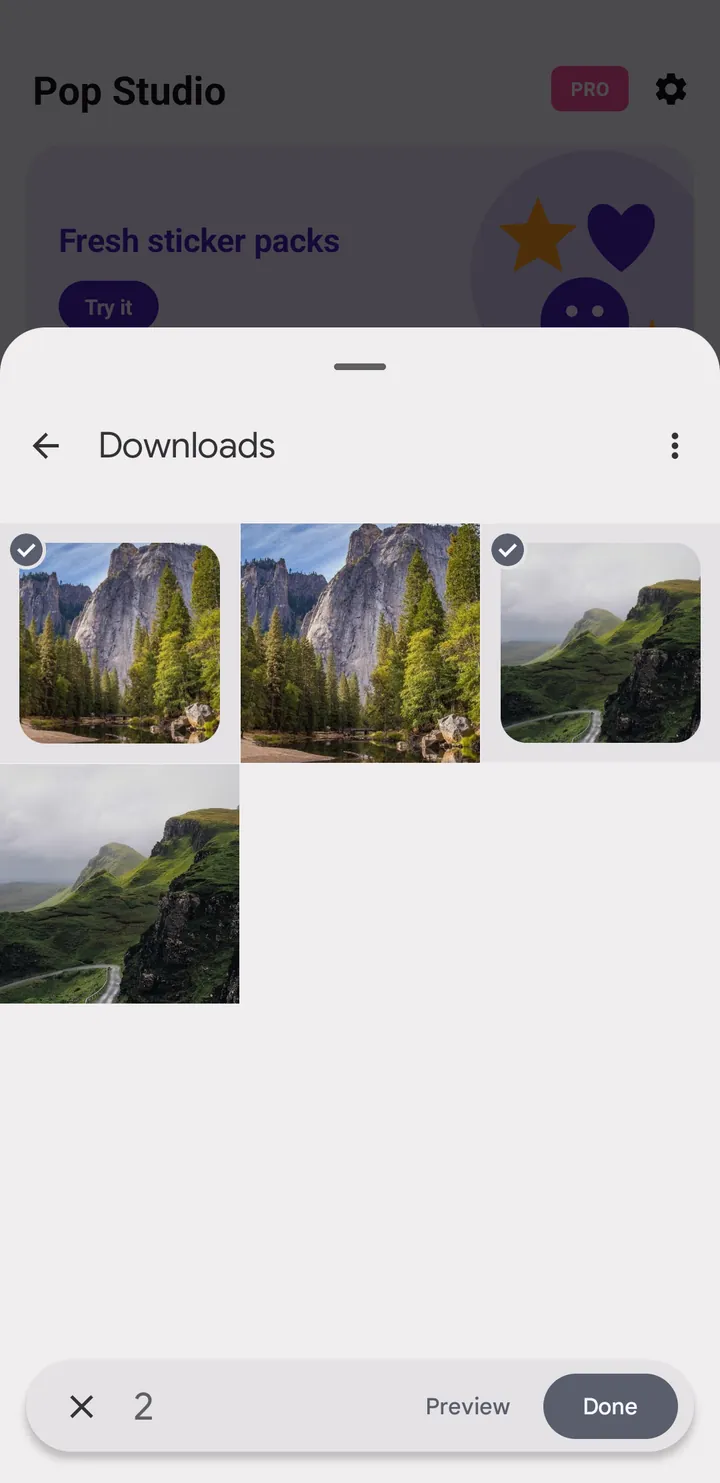
When you start a collage, Pop Studio opens the Android system photo picker, the same one Android uses for many apps. You choose specific photos, tap Done, and the app receives access to only those. It never asks for permission to read your whole gallery.
Editing on your phone, with no upload
Every step, including the layout, filters, stickers, text and the final export, runs on your phone. Pop Studio has no server that receives your photos. That also means editing works without waiting for uploads, and the size of your photos does not eat into your mobile data.
No account
There is no sign-up and no login. You open the app and start creating. If you buy Pro, the purchase is tied to your Google Play account, not to a Pop Studio account.
Saved through the system
Exports are written through Android's media store into the Pop Studio album, which is why they appear in your gallery immediately and why the app does not need broad storage access to save them.
Settings, Pro and your data
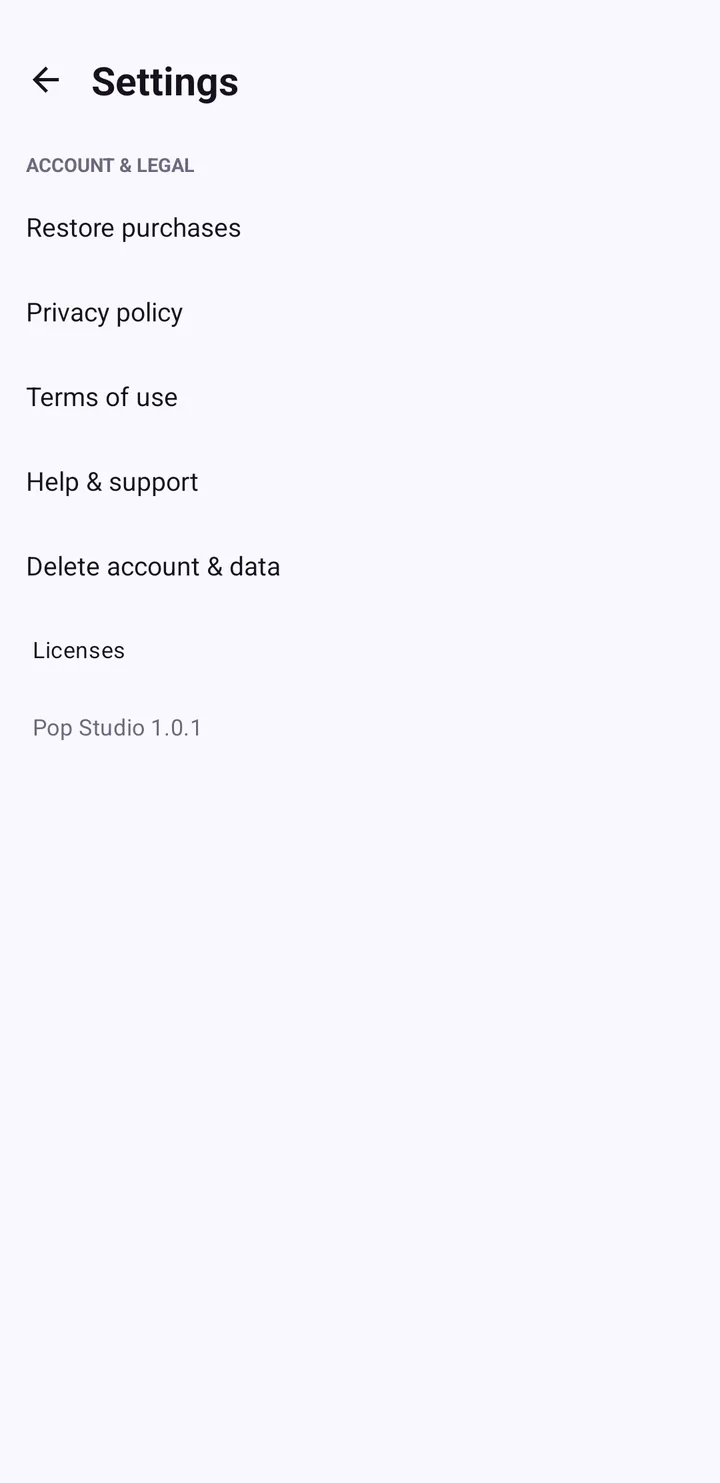
Tap the gear icon on the home screen to open Settings. Under ACCOUNT & LEGAL you will find Restore purchases, Privacy policy, Terms of use, Help & support, Delete account & data and Licenses, along with the app version.
Restoring Pro
Pop Studio is free with ads. The optional Pro, offered as Weekly, Yearly or Lifetime, removes ads and unlocks premium filters, effects and templates. Prices are shown in Google Play before you pay.
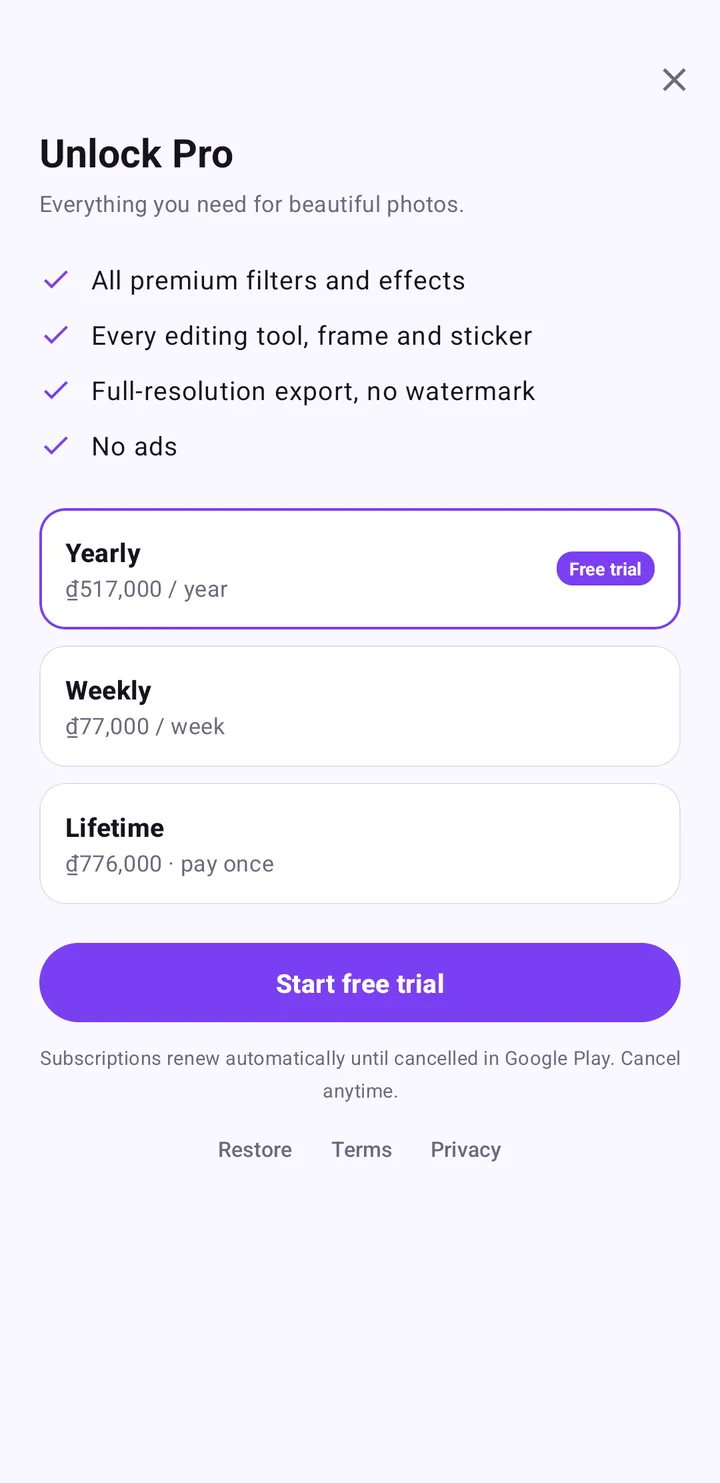
Pro restores automatically on the same Google Play account; if it does not appear after reinstalling, tap Restore purchases.
Cancelling a subscription
Subscriptions are managed by Google Play: open Google Play, then Profile, Payments & subscriptions, Subscriptions, Pop Studio, and Cancel. Uninstalling the app does not cancel a subscription.
For the full details of what data the app and its ad and purchase services handle, read our privacy policy.
Tips and common mistakes
- Choosing PNG for everything. It is not "better" for social media, just bigger. Use JPEG for sharing.
- Looking for your work inside the app. Check the Pop Studio album in your gallery instead.
- Leaving without exporting. Always tap Export before closing the editor.
- Not seeing your target app in the share list. Use More; the Android share sheet may need a scroll, and you can also share later from your gallery.
- Making a second size from scratch. Use Edit more to change the ratio and export again. The ratio, border and background guide explains each shape.
Wrap-up
Saving in Pop Studio is two taps: Export, then JPEG · smaller file or PNG · lossless. Your image goes into the Pop Studio album in your Photos, and the Saved screen lets you share to Instagram, any other app through More, or jump back in with Edit more. Throughout, your photos stay on your phone: picked through the system photo picker, edited locally and never uploaded. New to the app? Start with the beginner guide, then try a few collage ideas.
Frequently asked questions
Where are my Pop Studio collages saved?
In your phone's Photos or Gallery app, in an album called Pop Studio. The Saved screen confirms this after every export.
Should I export as JPEG or PNG?
Choose JPEG for social media and messaging because the file is smaller. Choose PNG for printing, archiving or editing again in another app.
Does Pop Studio upload my photos?
No. Editing and export run on your phone and the app has no server that receives your photos. It also needs no account.
Why doesn't Pop Studio ask for storage permission?
It uses the Android system photo picker, so the app only gets the photos you choose. Exports are saved through the system media store.
How do I share a collage to TikTok or Zalo?
After exporting, tap More on the Saved screen to open the Android share sheet and pick the app. You can also share later from your gallery.
Keep reading
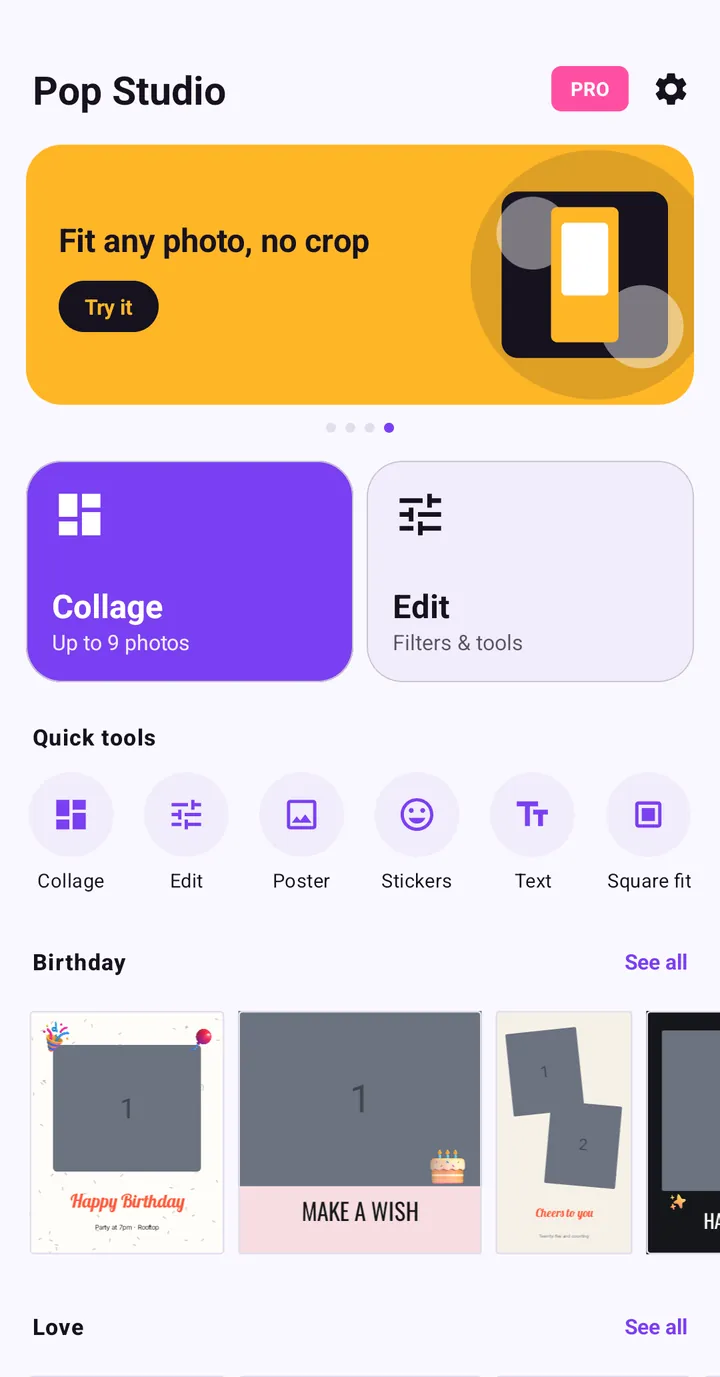
Pop Studio App Tutorial: Make Your First Photo Collage
New to Pop Studio? This beginner guide walks you from the home screen to a finished photo collage saved in your gallery, one tap at a time.
Read the guide →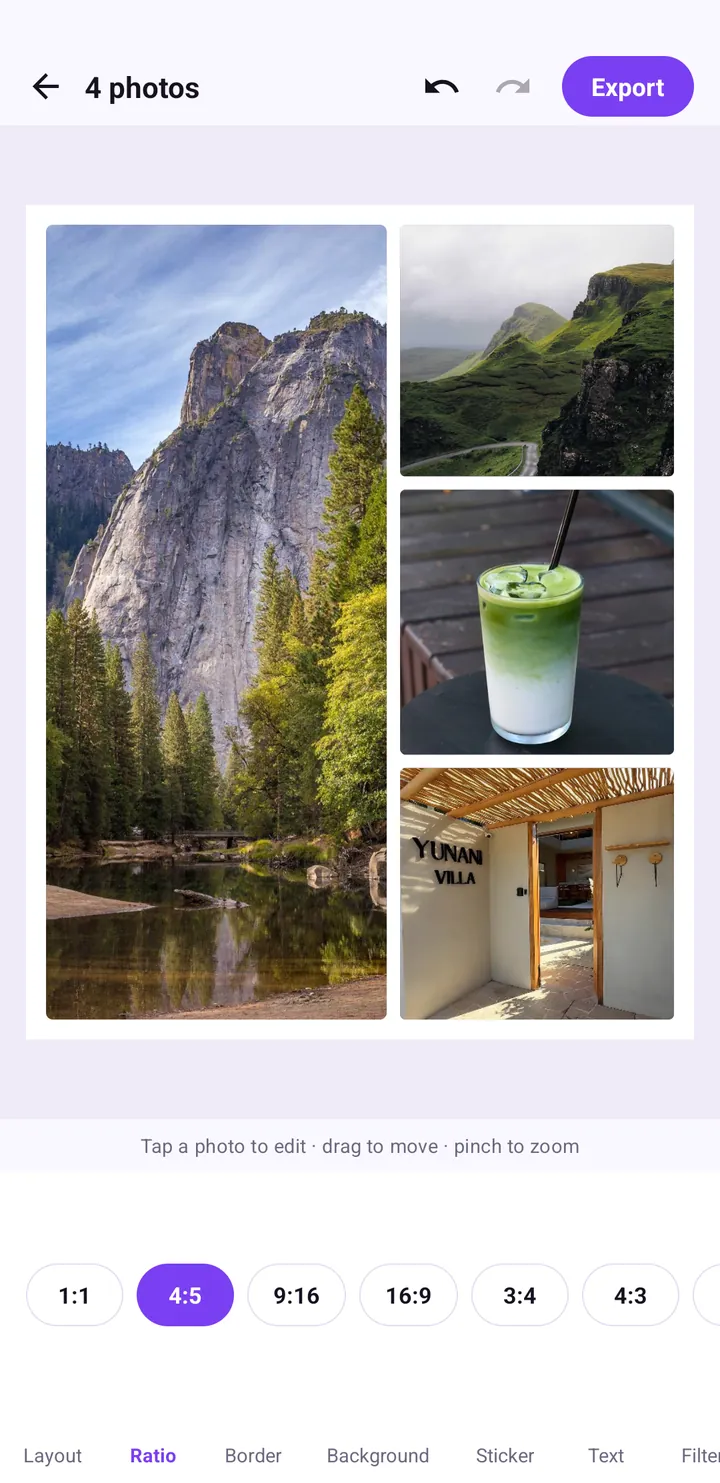
Instagram Story collage guide: 9:16 vs 4:5 vs 1:1 and safe zones
How to make collages that fit Instagram Stories, TikTok and the feed the first time: choosing 9:16, 4:5 or 1:1, keeping text inside the safe zone, and sharing straight from the Saved screen.
Read the guide →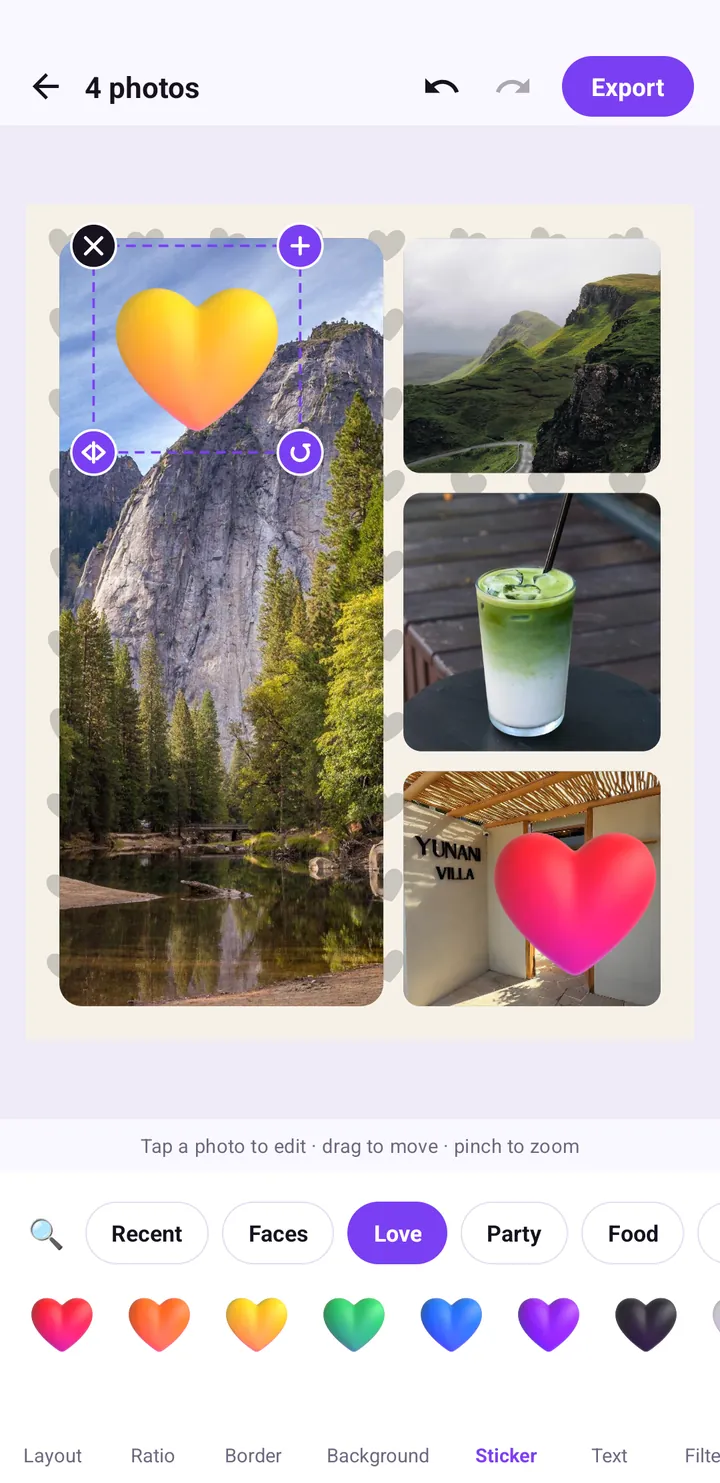
12 collage ideas for birthdays, couples, trips, food and friends
Twelve collage ideas for birthdays, couples, trips, food and friends, each with the exact layouts, ratios, stickers and poster templates to use in Pop Studio.
Read the guide →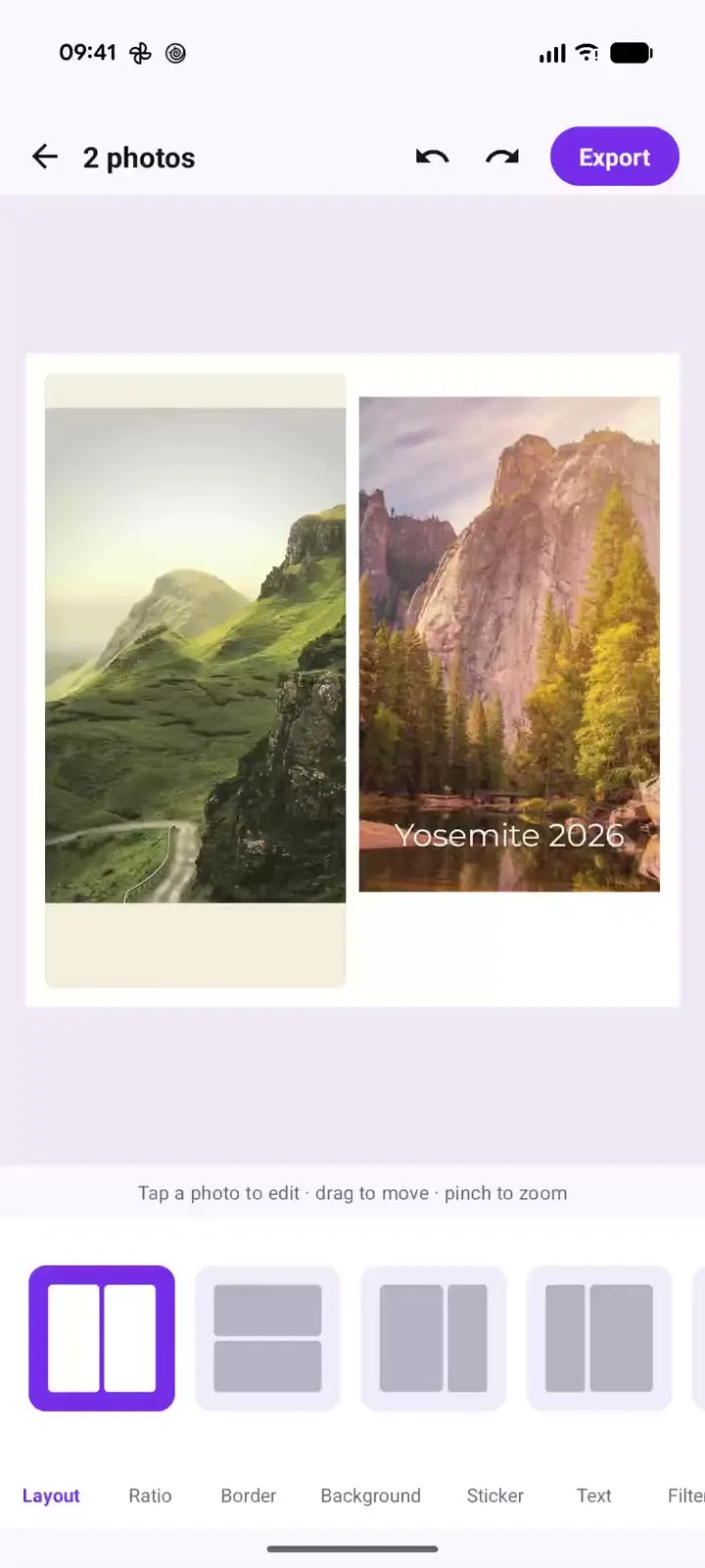
Pop Studio in action: a two-photo collage in 20 seconds
Recorded on a Pixel 10 Pro XL: one two-photo collage, side-by-side, stacked and unequal layouts, the Margin, Gap and Corner sliders, and cream versus black backgrounds, with a timestamped breakdown and steps to make your own.
Read the guide →